Understanding Jitter: Why It Ruins Video Calls
Beyond Upload and Download Speeds
When people troubleshoot connection issues, they usually run a Speedtest and look exclusively at the Megabits per second (Mbps). But when real-time communication (like Zoom, Skype, or VoIP phone calls) starts stuttering and sounding robotic, the issue is rarely a lack of bandwidth.
The true culprit is usually Jitter.
What Exactly is Jitter?
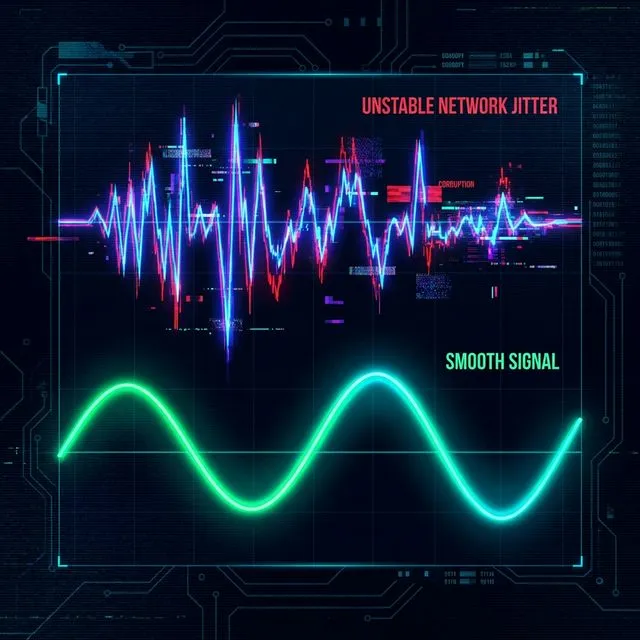
Jitter is the variance in your Latency (Ping). Think of data as cars on a highway. Latency is how long it takes a car to reach the destination. Jitter is the inconsistency in that travel time.
If Packet 1 takes 20ms to arrive, Packet 2 takes 25ms, but Packet 3 gets stuck in traffic and takes 100ms... that erratic delay is Jitter. Because video and voice calls require a smooth, continuous stream of data packets to assemble the audio and video on your screen, delayed packets cause the software to panic, resulting in frozen frames or robotic, skipping audio.
Acceptable Jitter Levels
For a flawless VoIP or video conferencing experience, your Jitter should be below 30ms, and ideally below 15ms. Anything above 50ms will cause noticeable audio degradation and dropped syllables.
How to Fix High Jitter
1. Use an Ethernet Cable: Wi-Fi inherently introduces jitter because radio waves are inconsistent. A wired connection smooths out packet delivery.
2. Enable QoS on Your Router: Quality of Service (QoS) allows your router to prioritize VoIP and video traffic over background downloads.
3. Upgrade Your Router: Older routers have slower processors that cannot efficiently route large queues of packets, leading to bufferbloat (a major cause of jitter under load).